
Keep unreleased assets private
The 3D model never leaves your browser. The AI sees only the UV map and your prompt, which suits NDA projects and licensed IP.
Game Dev Workflow
Turn a UV-unwrapped mesh and a prompt into production-minded texture directions for props, weapons, environments, and stylized game assets. Your model stays in your browser and the AI sees only its UV map, so unreleased assets stay private.
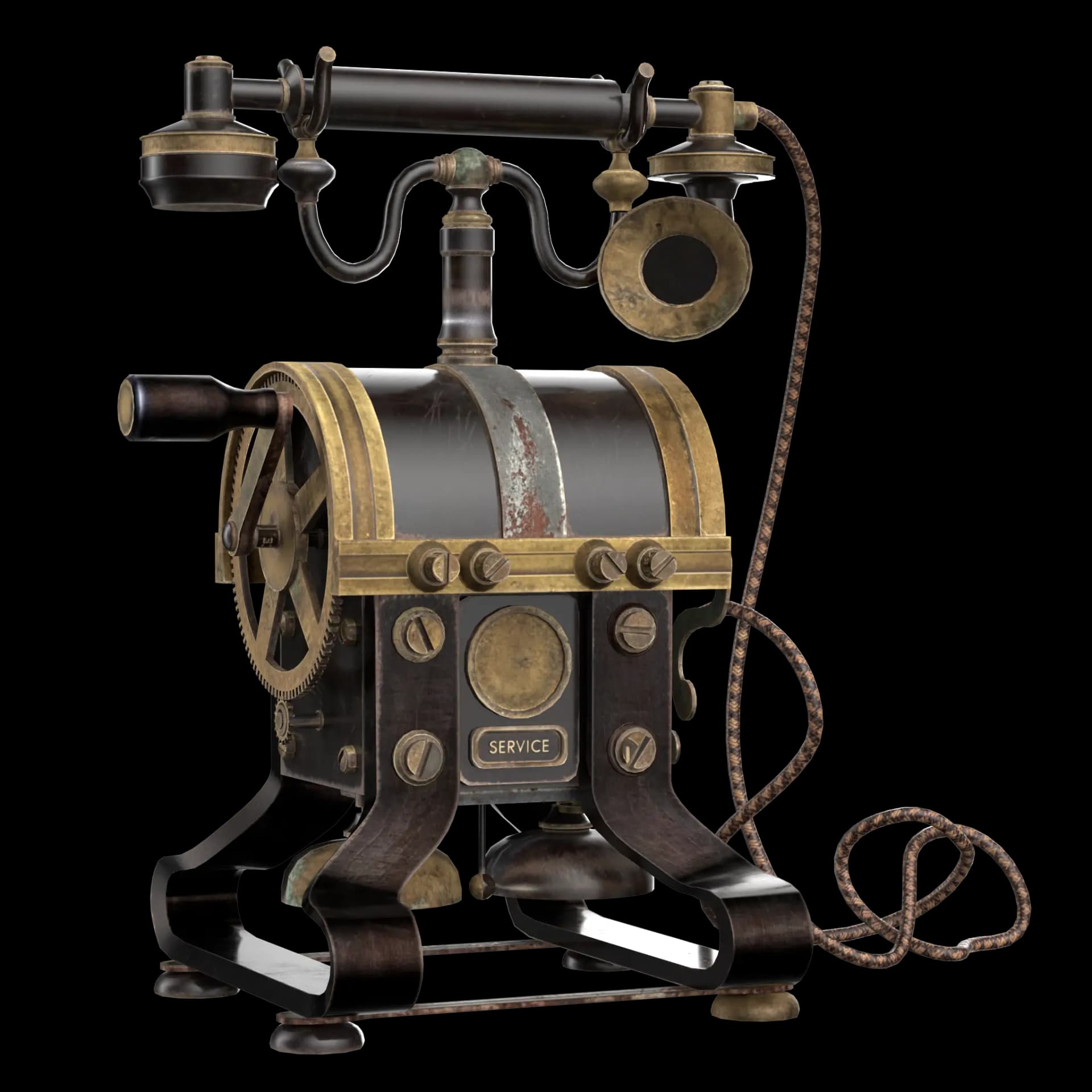
The 3D model never leaves your browser. The AI sees only the UV map and your prompt, which suits NDA projects and licensed IP.
Explore surface style, age, and color direction before a hand-painting pass, and generate as many looks per model as your token allowance covers.
Work around UV-unwrapped models and export practical texture maps for common game pipelines.
Workflow
Start from a mesh with clean UVs so the generated texture lands in the right places. The file stays in your browser.
Prompt the material, art direction, wear, mood, and gameplay context you want to explore.
Use the generated maps as a base for Blender, Unity, Unreal, or your preferred texture editor.
Comparison
Hand-painting every prop in Substance Painter or sourcing mismatched textures from asset stores can take hours per asset and still drift art direction across a level. TextureFast generates a complete PBR map set from a plain-language prompt on your UV-unwrapped mesh in about a minute — enough to block out materials during production and refine the strongest directions later, without a dedicated texture artist on every sprint.
How-to guide
This workflow assumes you already have a UV-unwrapped prop, weapon, or environment piece. TextureFast does not replace modeling — it accelerates the material pass so you can ship more assets per sprint.
Export from Blender, Maya, or your DCC as GLB (recommended), GLTF, OBJ, or FBX with clean UV islands. Confirm there are no overlapping UVs in critical visible areas.
Open the texturing dashboard, load the model (it stays in your browser), pick a style preset (AAA Photorealistic for realistic props, Handpainted or Pixel Art for stylized games), and write a prompt that names material, wear, and palette.
Move to the PBR Material tab and run one-click full material generation or generate Normal, Roughness, Height, and AO individually. Download PNG maps at up to 4K.
Wire maps into Unity URP/HDRP, Unreal Material Editor, or Godot StandardMaterial3D. Use the Blender addon if you prefer to stay in DCC for the first pass.
Use Cases
FAQ
No. It can help with stylized, hand-painted, semi-realistic, and PBR-oriented texture directions depending on the prompt and model.
Yes. The core 3D model texturing workflow is designed for UV-unwrapped models so texture placement is predictable.
TextureFast accepts GLB, GLTF, OBJ, and FBX. GLB is the fastest path because it is a single self-contained file with mesh and UV data. The file is opened locally in your browser and is never uploaded.
You can download Base Color, Normal, Roughness, Metallic, Height, and Ambient Occlusion as PNG files at up to 4K resolution — the standard map set Unity URP/HDRP and Unreal Material workflows expect.
Yes. The free TextureFast Blender addon lets you generate and apply PBR textures inside Blender before exporting to Unity, Unreal, or Godot — useful when your art team lives in a DCC-first pipeline.
Base Color generation usually takes roughly 30–120 seconds depending on model complexity and settings. Full PBR map extraction runs as a separate one-click step after the albedo direction is approved.
Yes. The 3D model stays in your browser and is never uploaded. The AI sees only the UV map and your prompt, and nothing is used for training, which suits unannounced titles and NDA-protected assets.
Open the current TextureFast workflow, generate a few directions, then keep the output that best matches your production target.